
How to Use Keyword Filtering
Why Keyword Filtering Matters
Swoopa can collect listings from a whole host of platforms. Some platforms are very good at showing you the items you search for, and some are known for showing you many unrelated items.
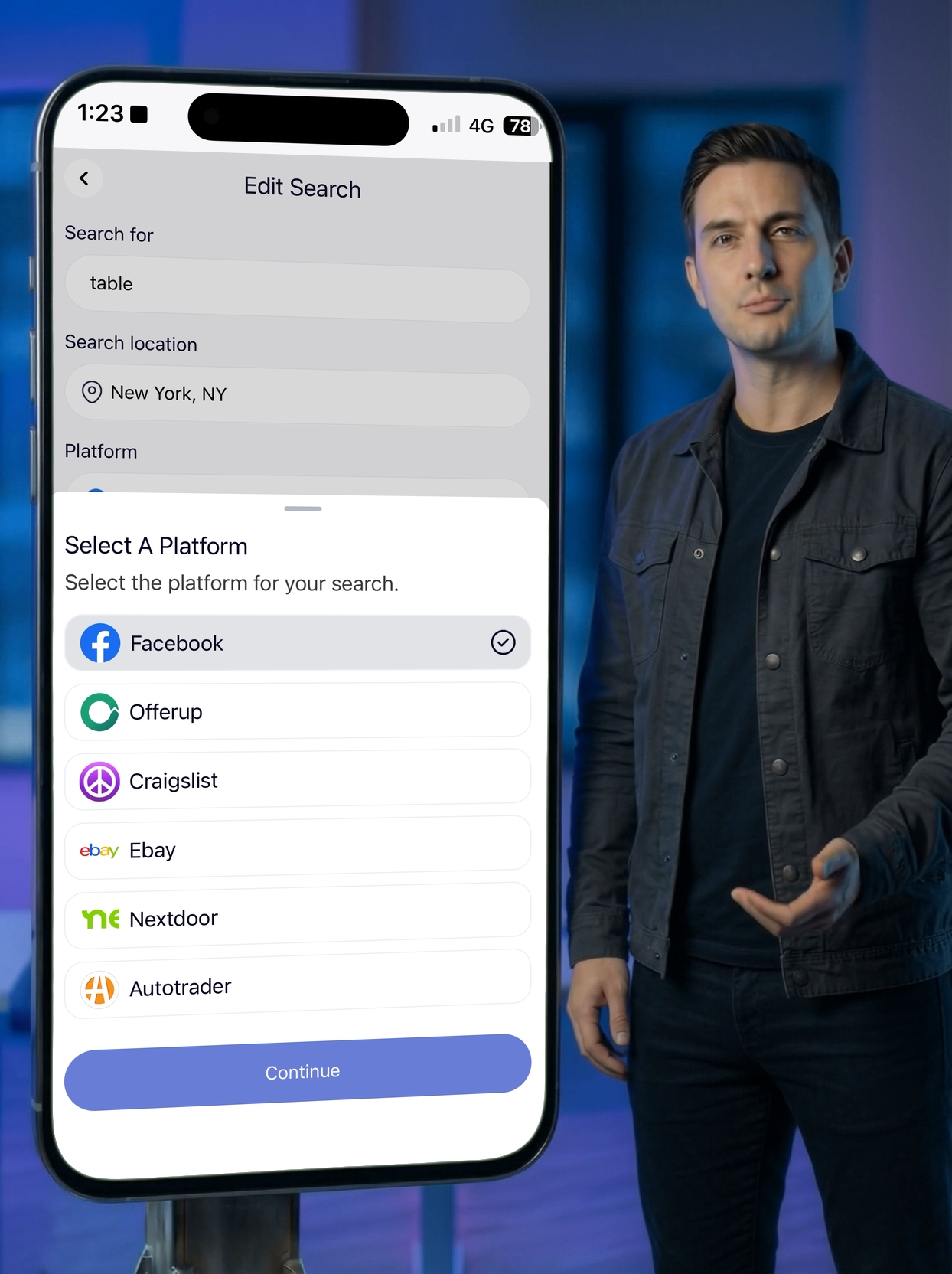
For this reason, Swoopa has rule-based positive and negative keyword filtering to cover most scenarios.
Just note that you can't add keyword filters until after a search has been created.
Accessing Keyword Filters
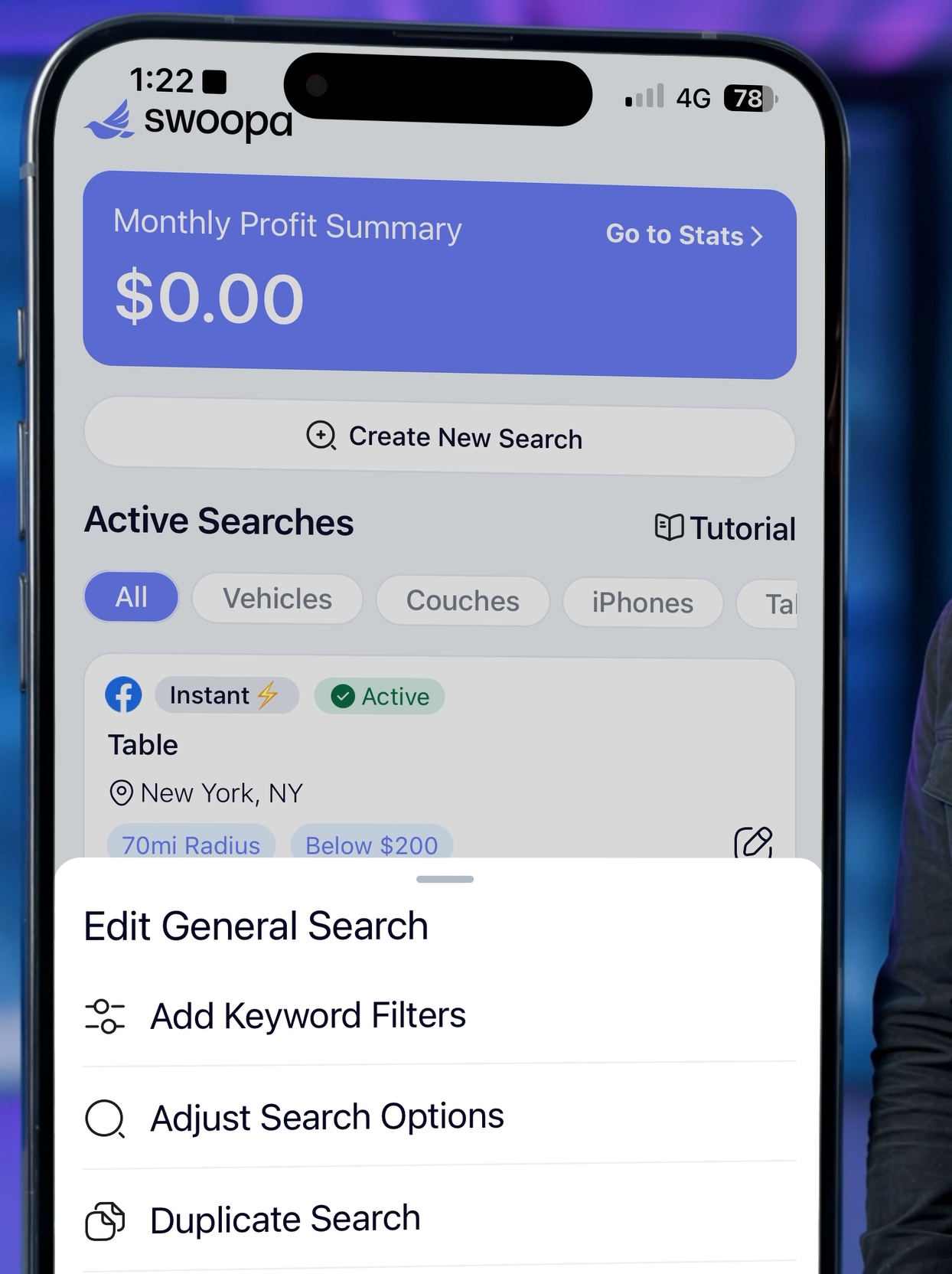
Once the search is created, tap the pencil icon on the search, then tap Add keyword filters.
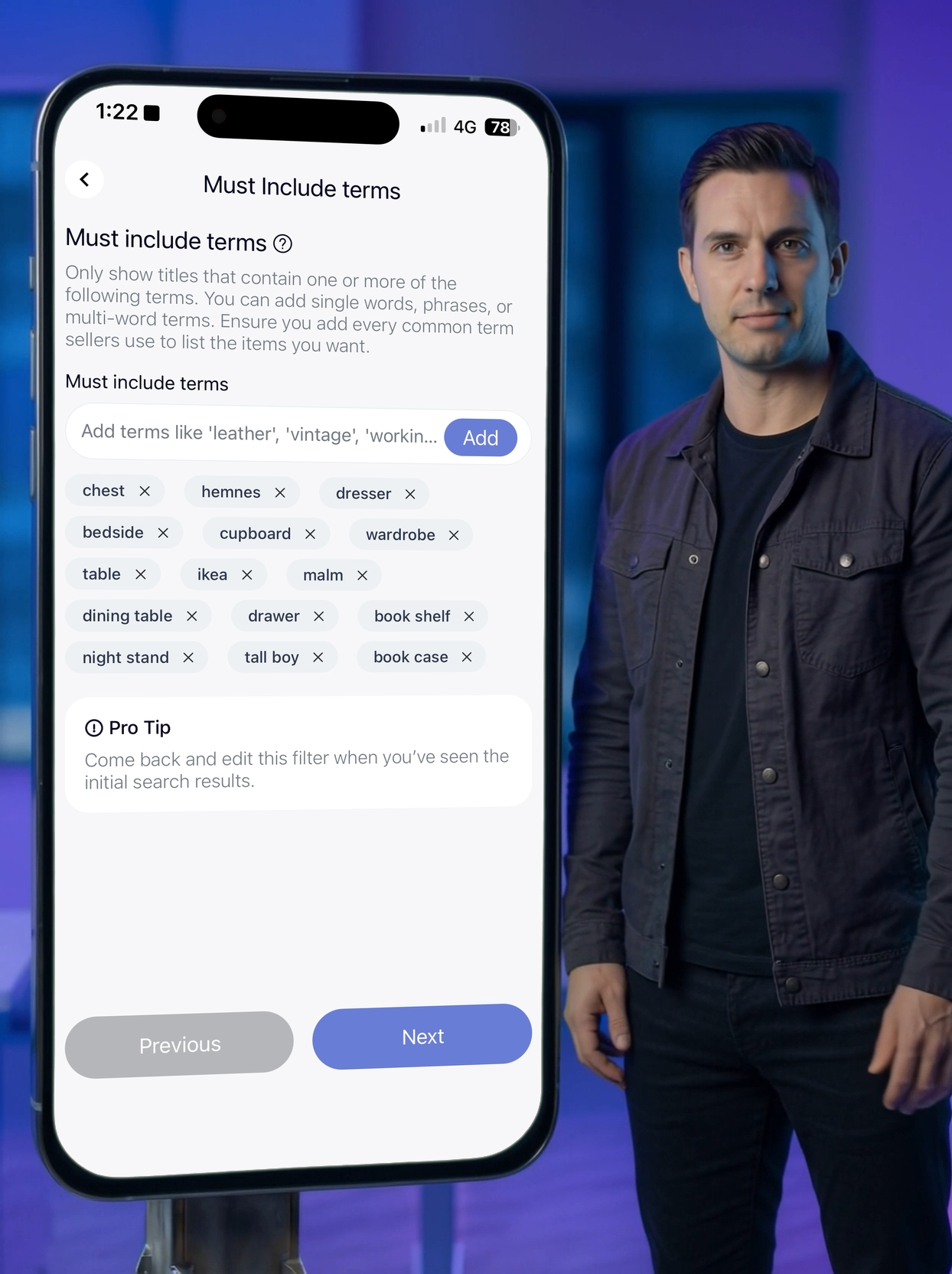
You'll see some pre-added filters. If there are any you don't want, tap the X to remove them.
Next, work out the filters you need before adding them.
Two Types of Filters
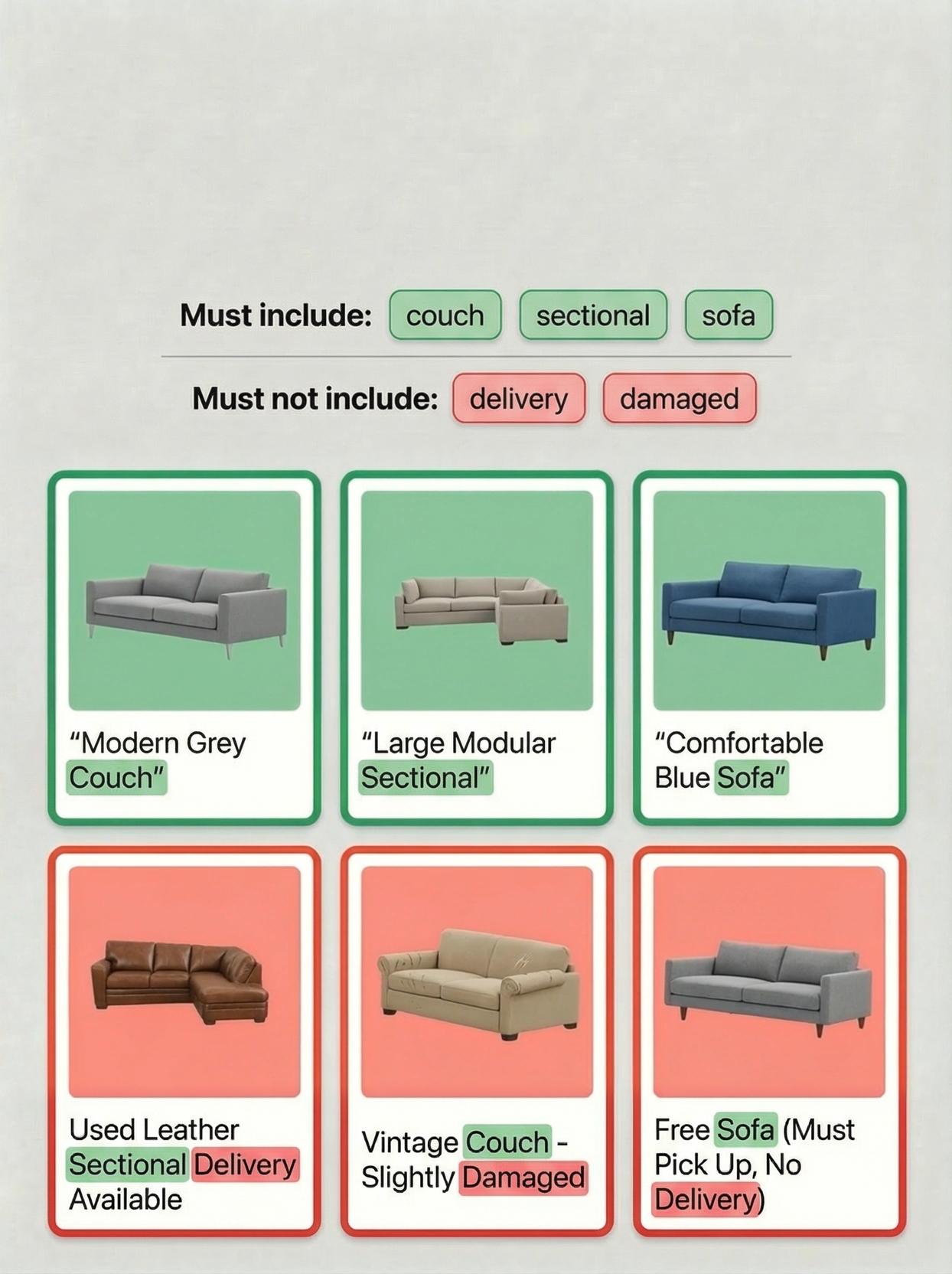
There are two types of filter: positive filters, which must be in the title for a listing to appear in your feed, and negative filters, which block listings when a specific word or phrase appears in the title.
Understanding Positive Filters
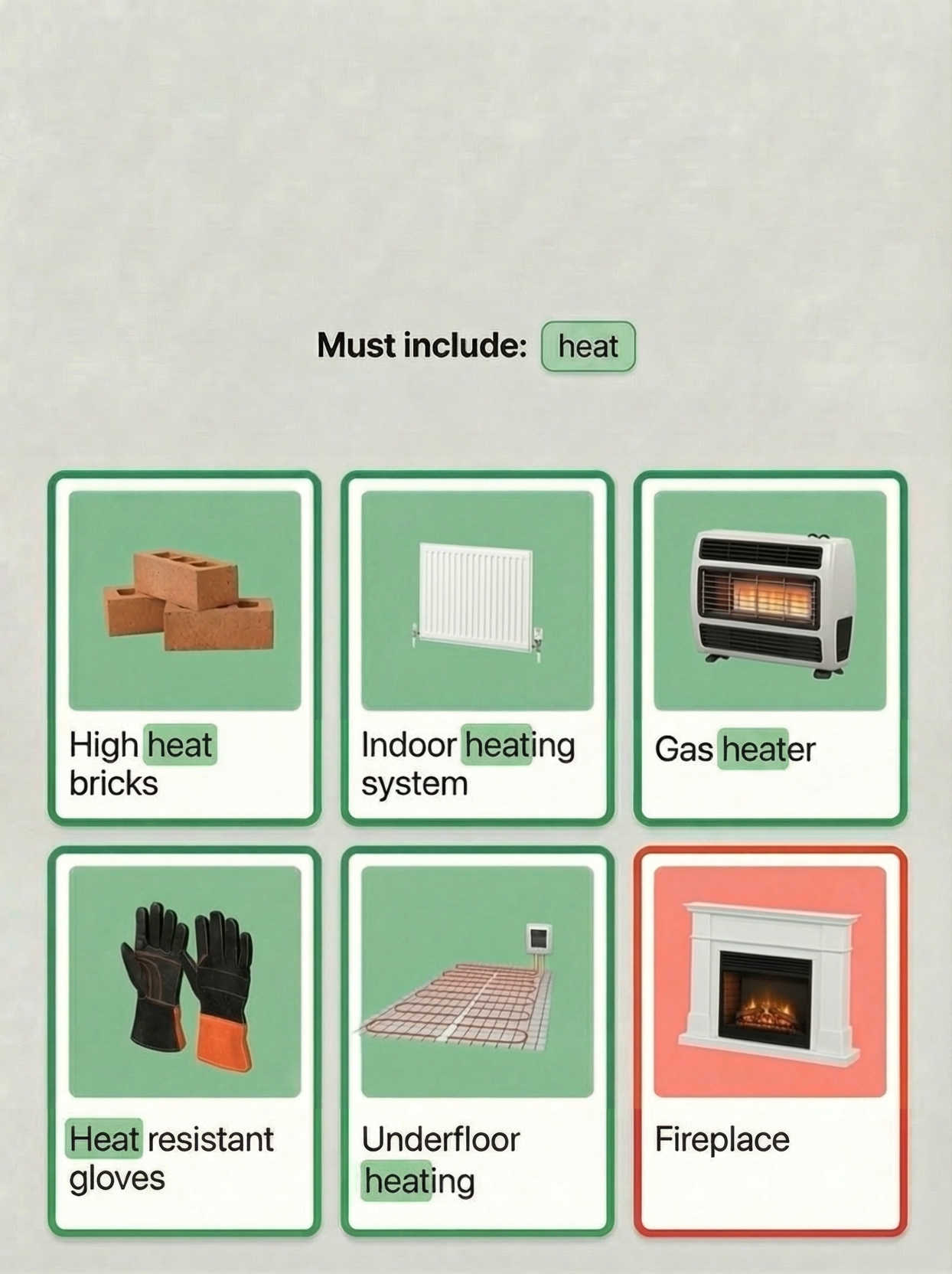
Positive filters look for words in the listing title. It can match as part of a larger word. Heat will match heater or heating.
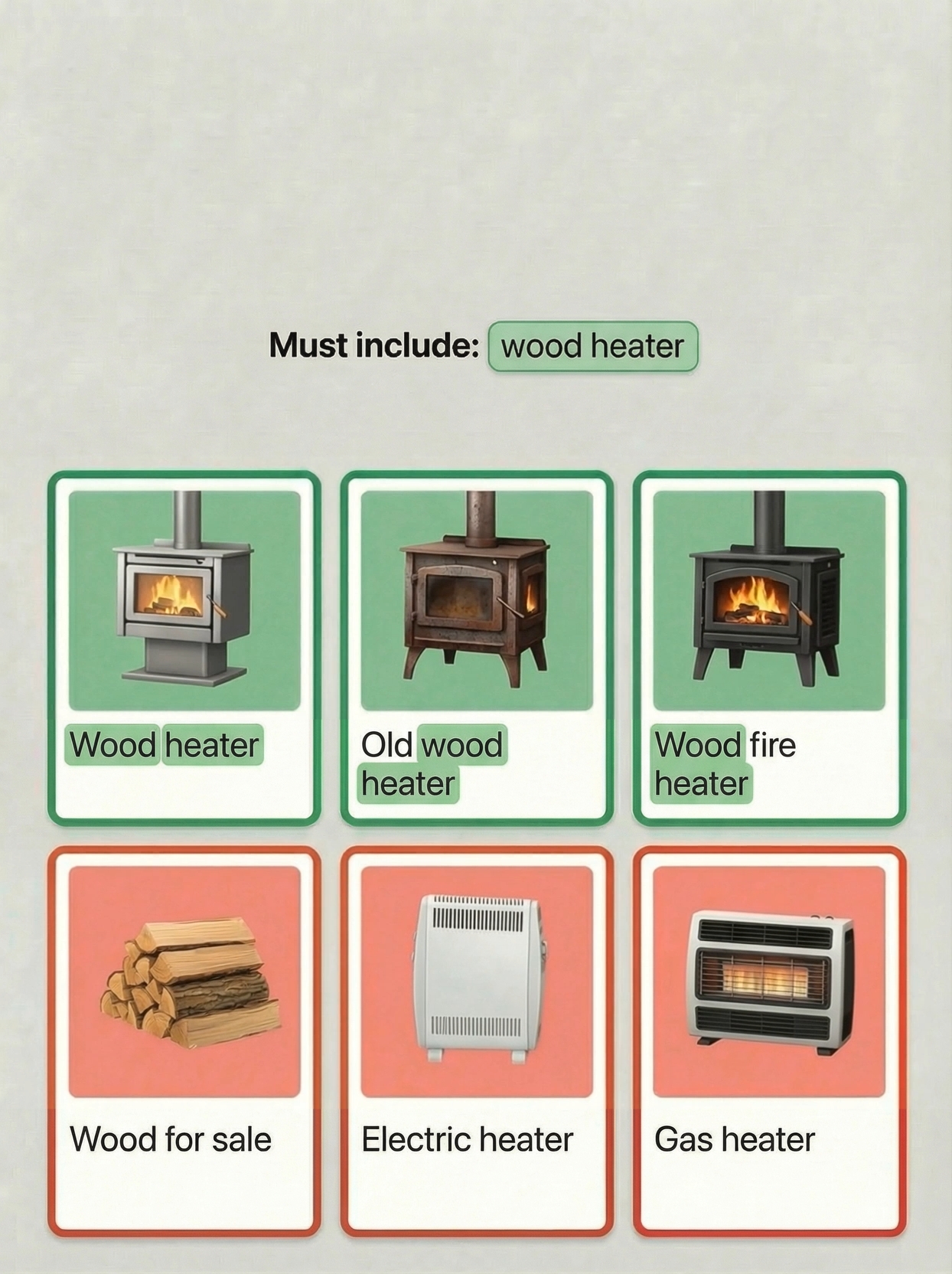
You can also use multi-word positive filters. For example, if you use wood heater as an includer, both words must be found in the title. The order does not matter. The words may appear separately or joined together.
Understanding Negative Filters
A negative filter must match the title exactly, and if it uses multiple words, they must appear together and in the same order.
Negative filters do allow simple English plural forms, but they do not match partial words or reordered phrases. This keeps exclusions precise and prevents you from blocking valid listings by accident.

Used together, positive and negative filters give you fine-grained control over what appears in your feed.
Real-World Examples
Now let's talk about some real-world examples to understand how filters work in practice.
Example 1: Mid-Century Tables
Let's look at a case where someone only wants mid-century tables. If they add table as a positive filter on its own, they'll see a lot of irrelevant results.
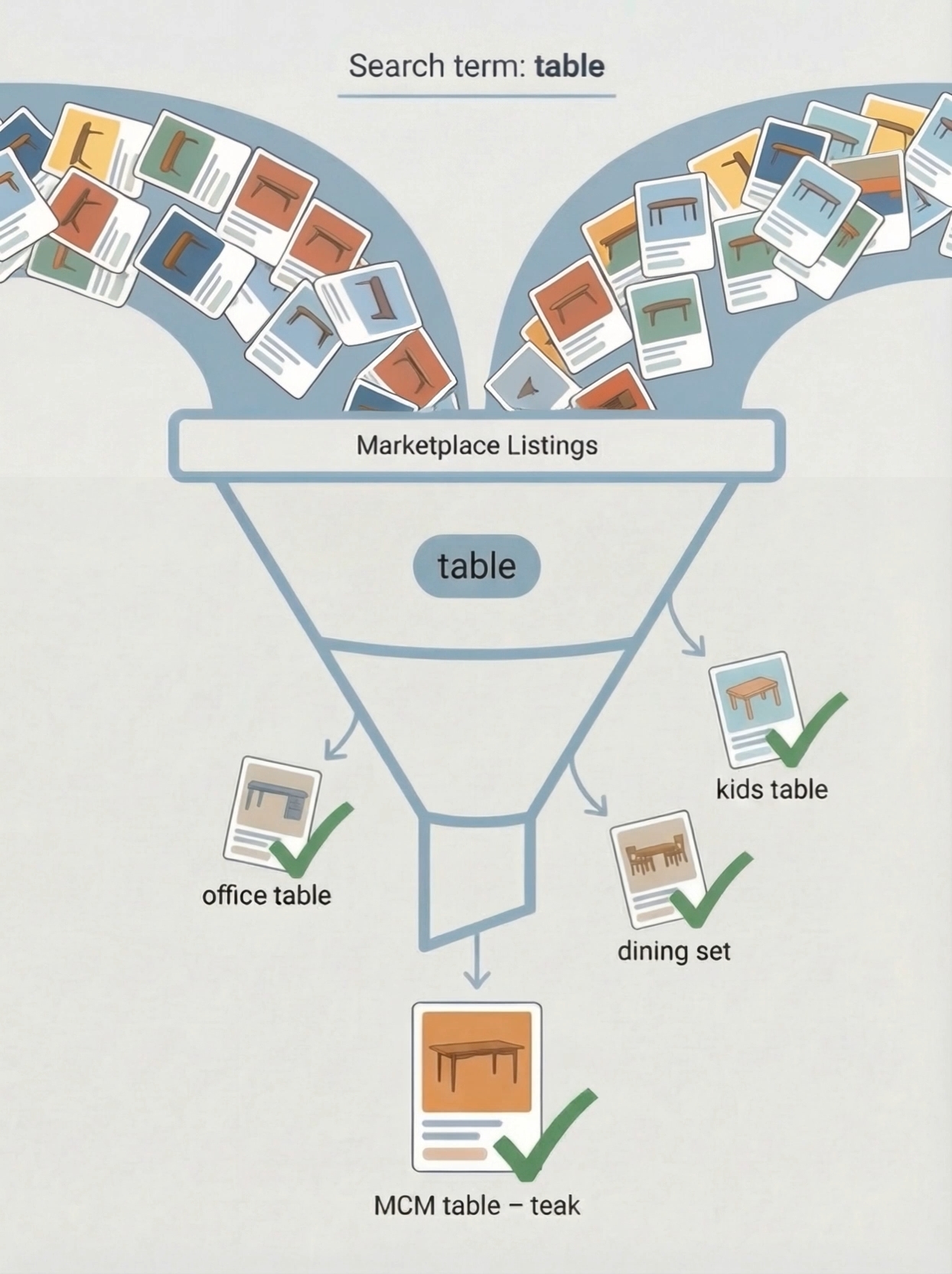
Instead, use more specific filters like MCM table, mid-century table, or designer table.
This way, you're still searching broadly for table, but only allowing listings through that match the styles you actually want.
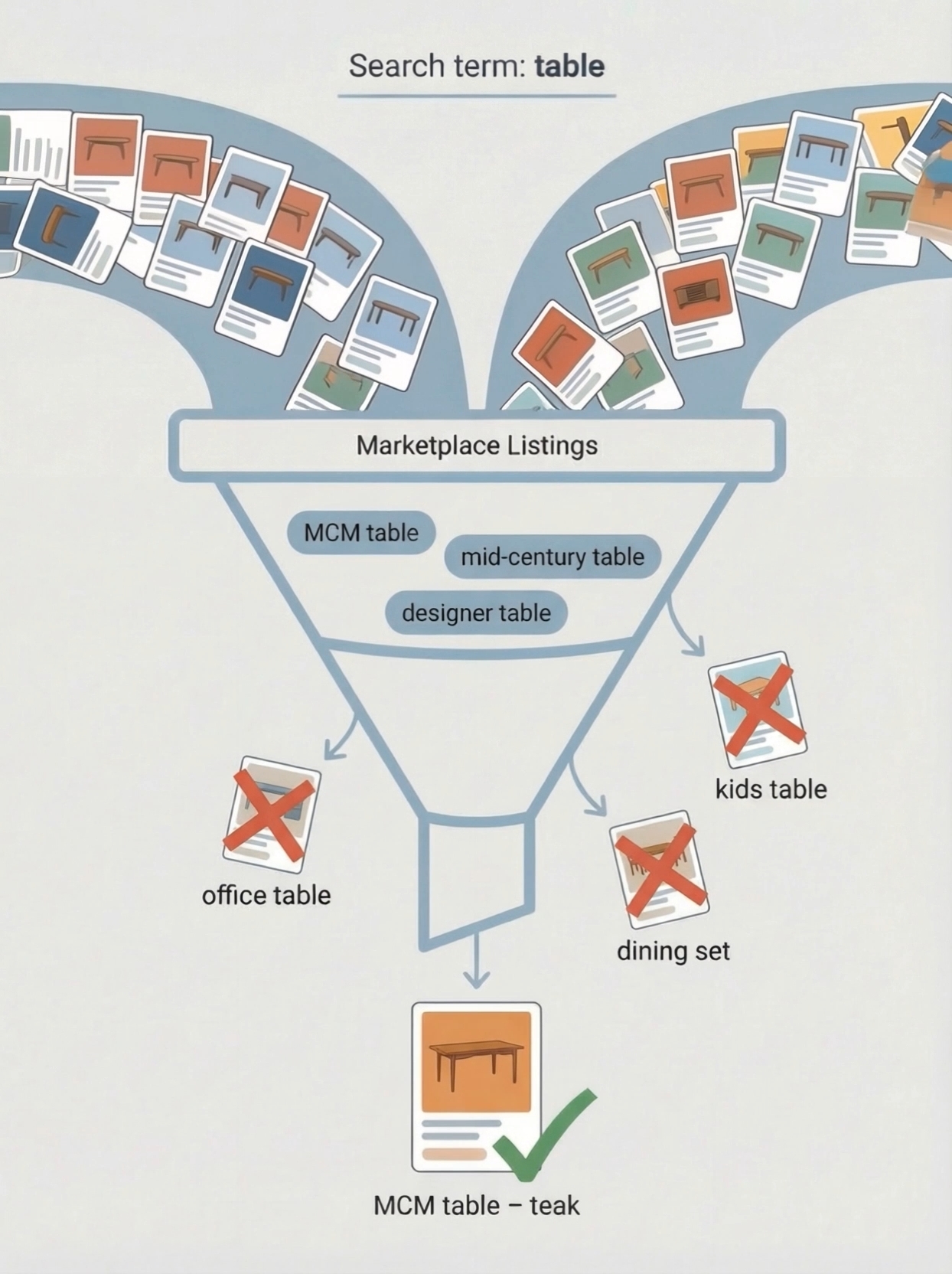
If you didn't include one of these terms and a seller listed the item using that wording, you wouldn't see it. That's because sellers usually use very specific titles for their items.
Example 2: Canon Printers
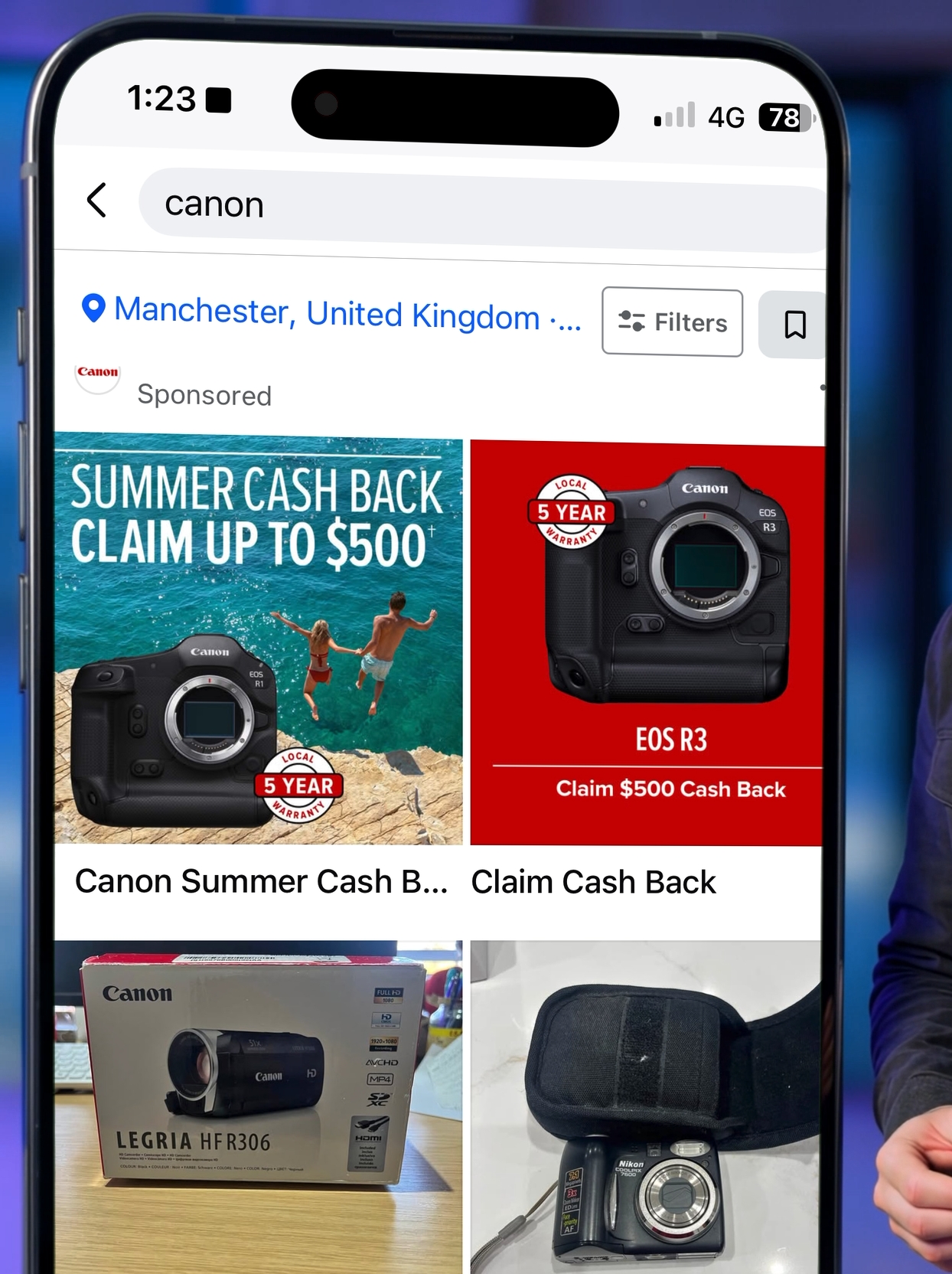
Let's say you're looking for printers, and you've added extra searches for printer brands, one of them being Canon.
The problem is Canon makes a wide range of products, so that search is going to return a whole heap of unwanted results.
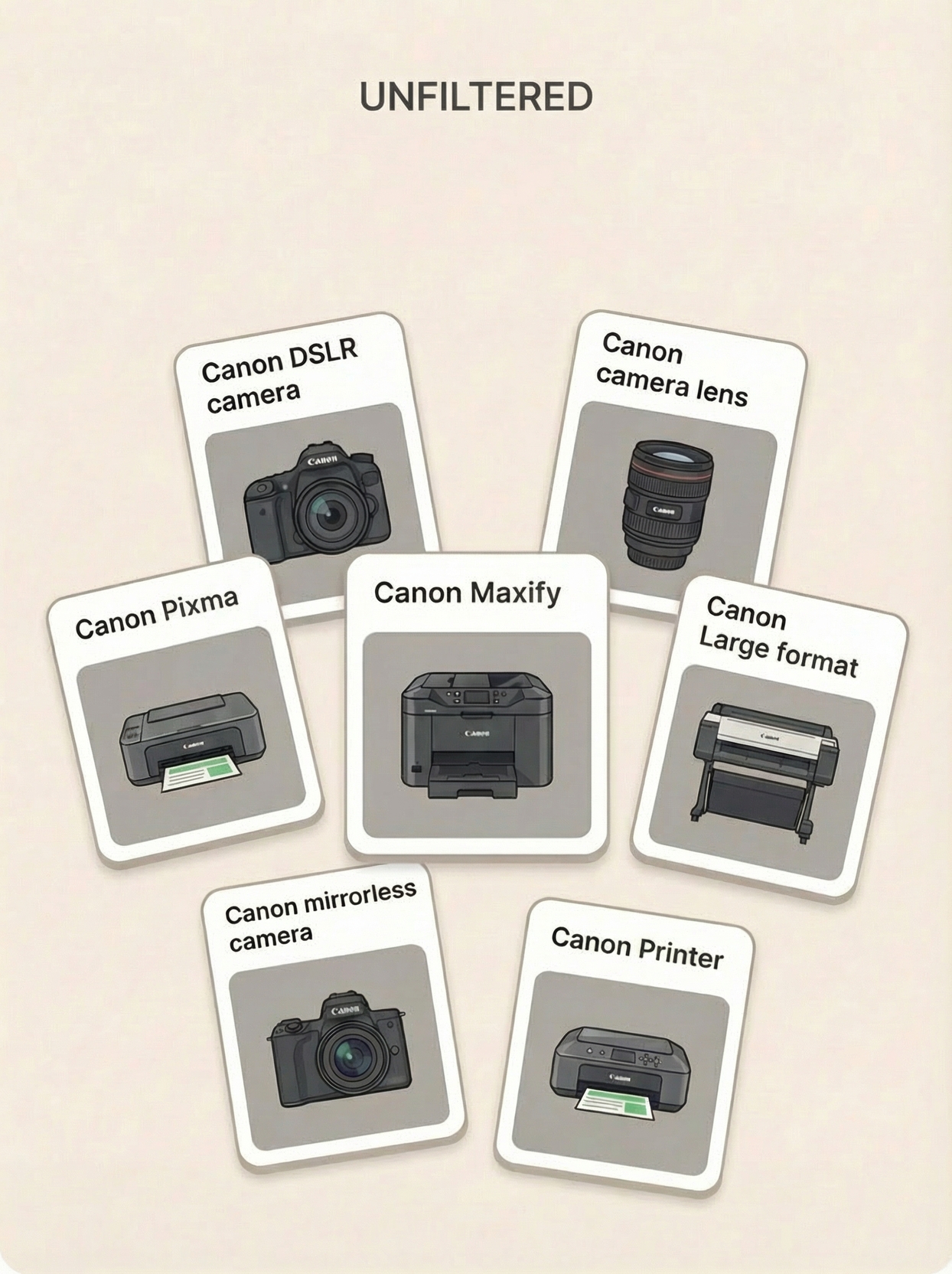
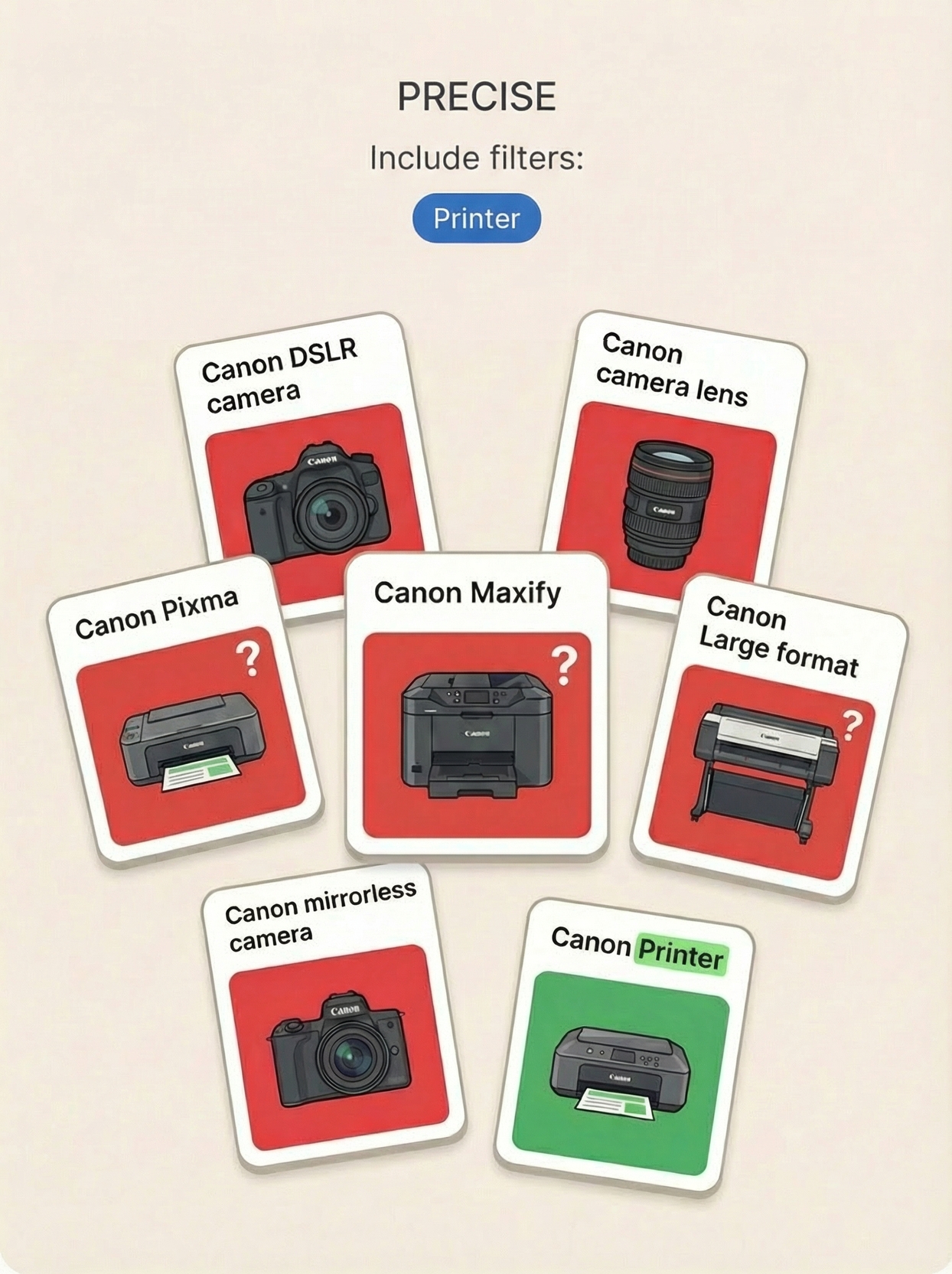
If we only use printer as an includer, we might miss listings that are printers but don't actually have the word printer in the title.
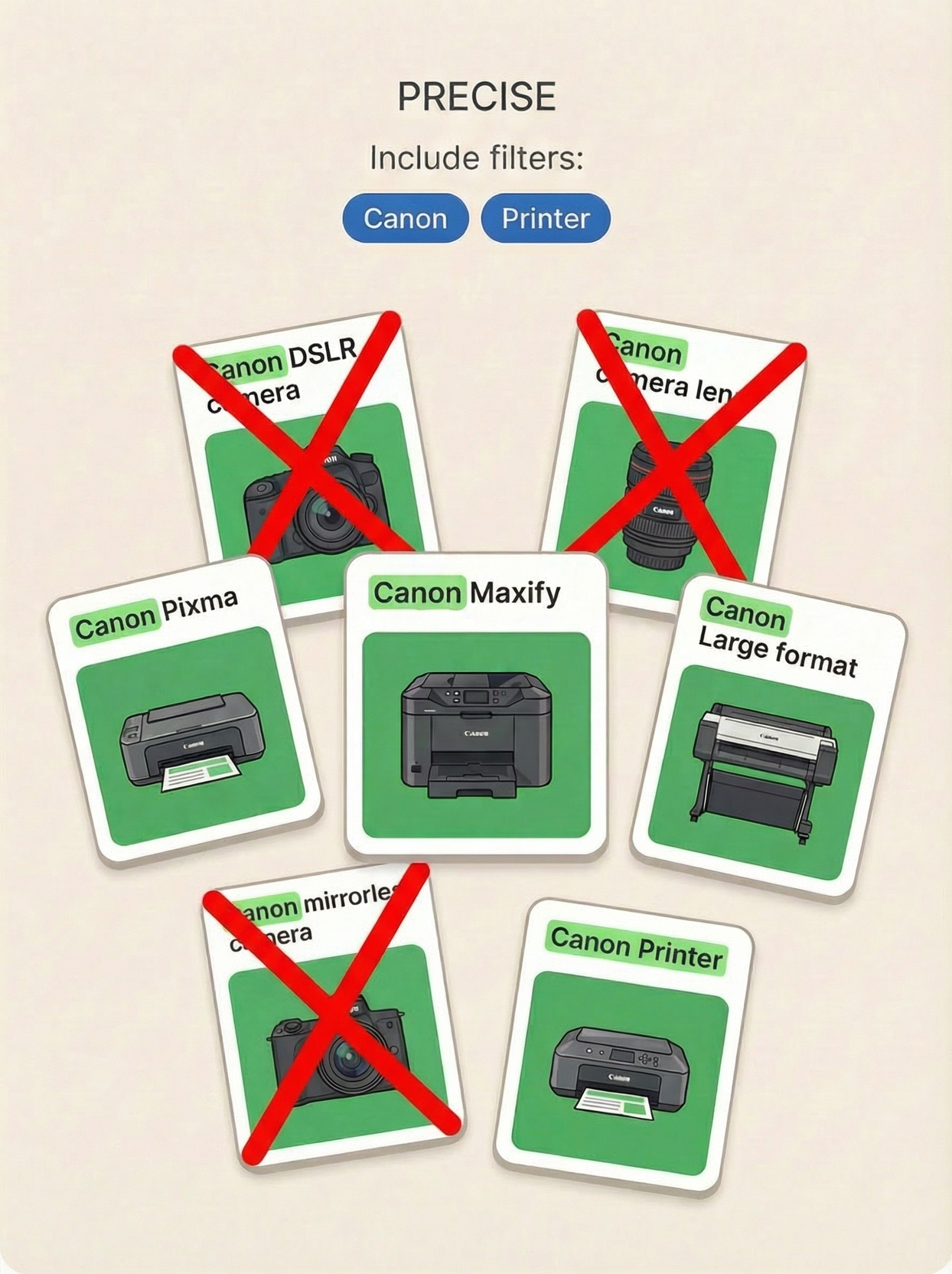
But if we use Canon and printer together, we'll still pick up Canon's other products.
The better solution is to find common printer model names like Maxify, PIXMA, or Large Format, and use those alongside printer as includers.
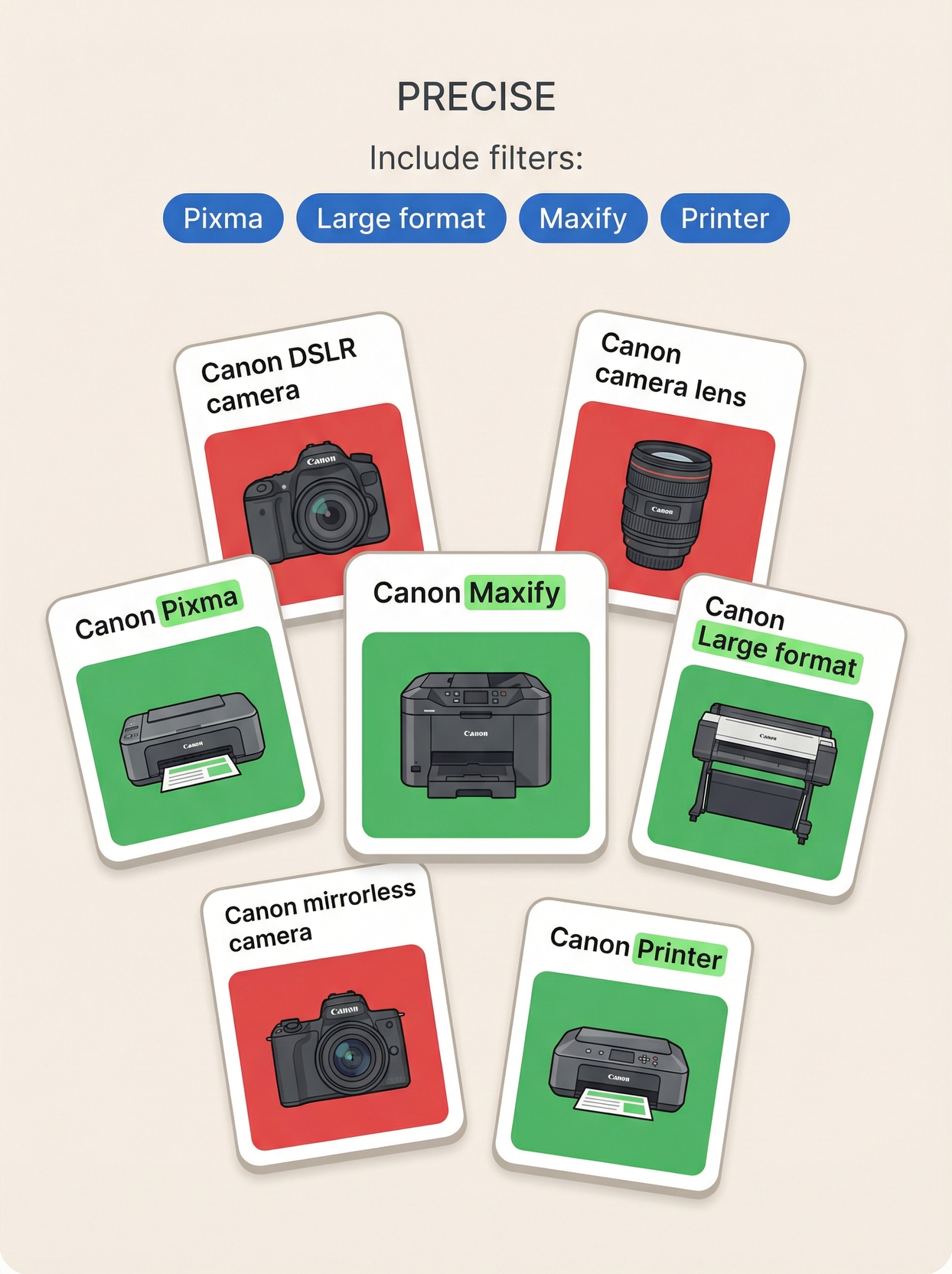
Notice how now we're no longer seeing all the camera gear.
At this point, you might be wondering why we didn't just use excluders. In scenarios like this, where there are so many variations that you'd need hundreds of excluders, it's usually smarter to solve the problem with includers first.
Description Filtering
Recently, we also introduced description filtering for both positive and negative filters.
We advise using these with care, as misuse can easily result in a lot of spam getting through or valid items being blocked incorrectly.
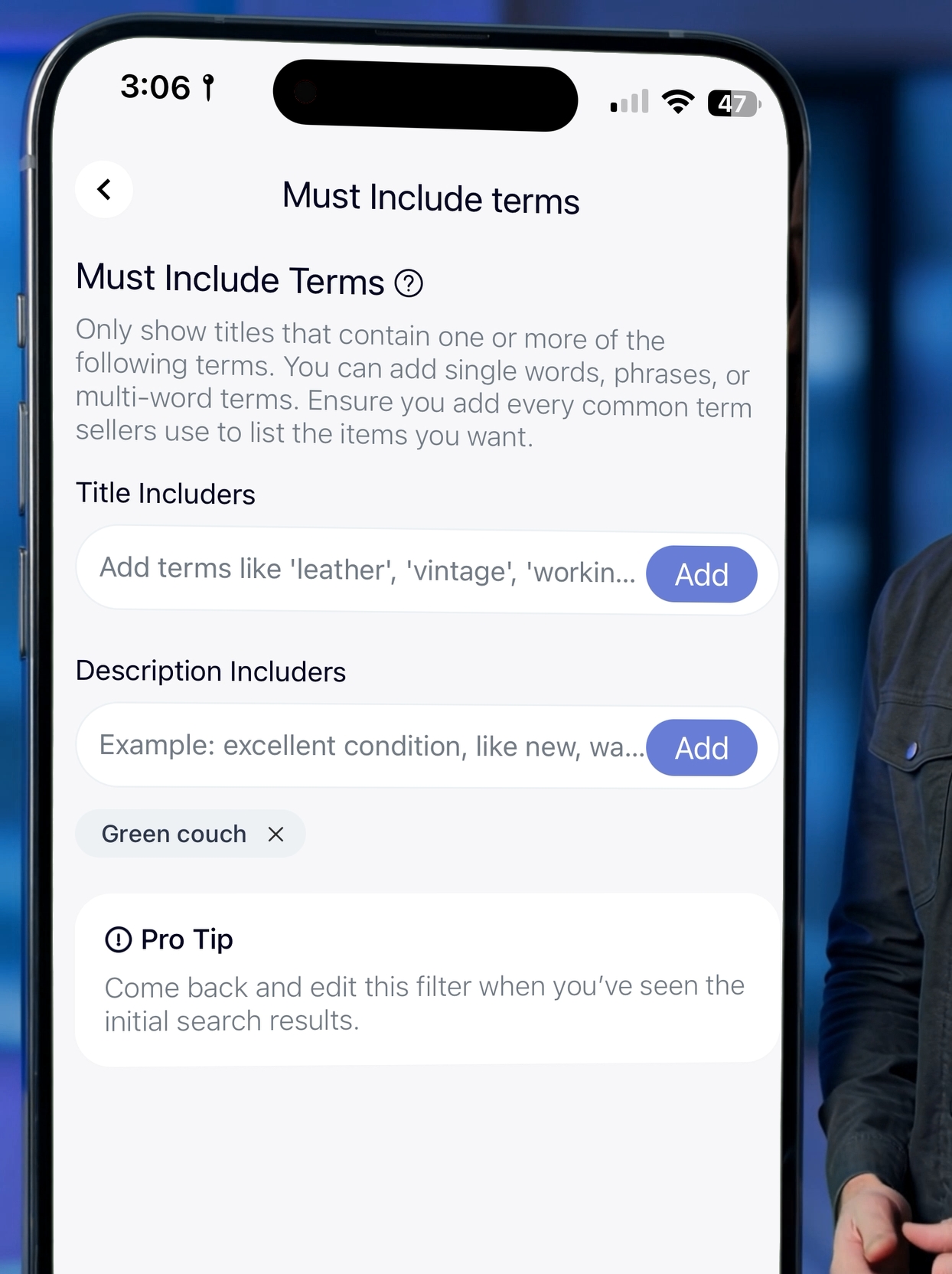
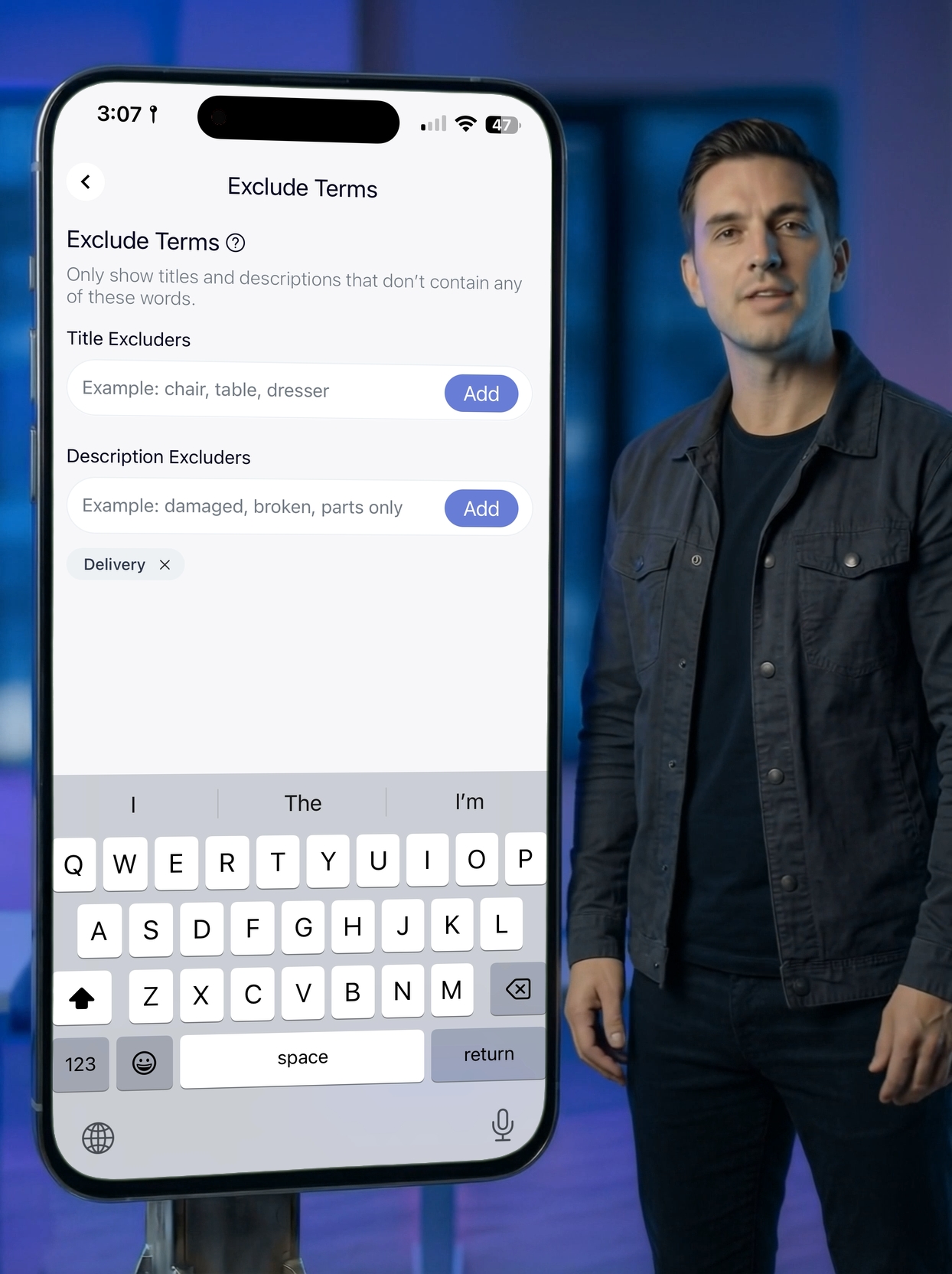
If you're unsure, our team is always happy to help you fine-tune your filters.
Pro Tip: Managing Filters Across Searches
When working with filters across multiple searches, a good approach is to write them in your notes app as a comma-separated list.
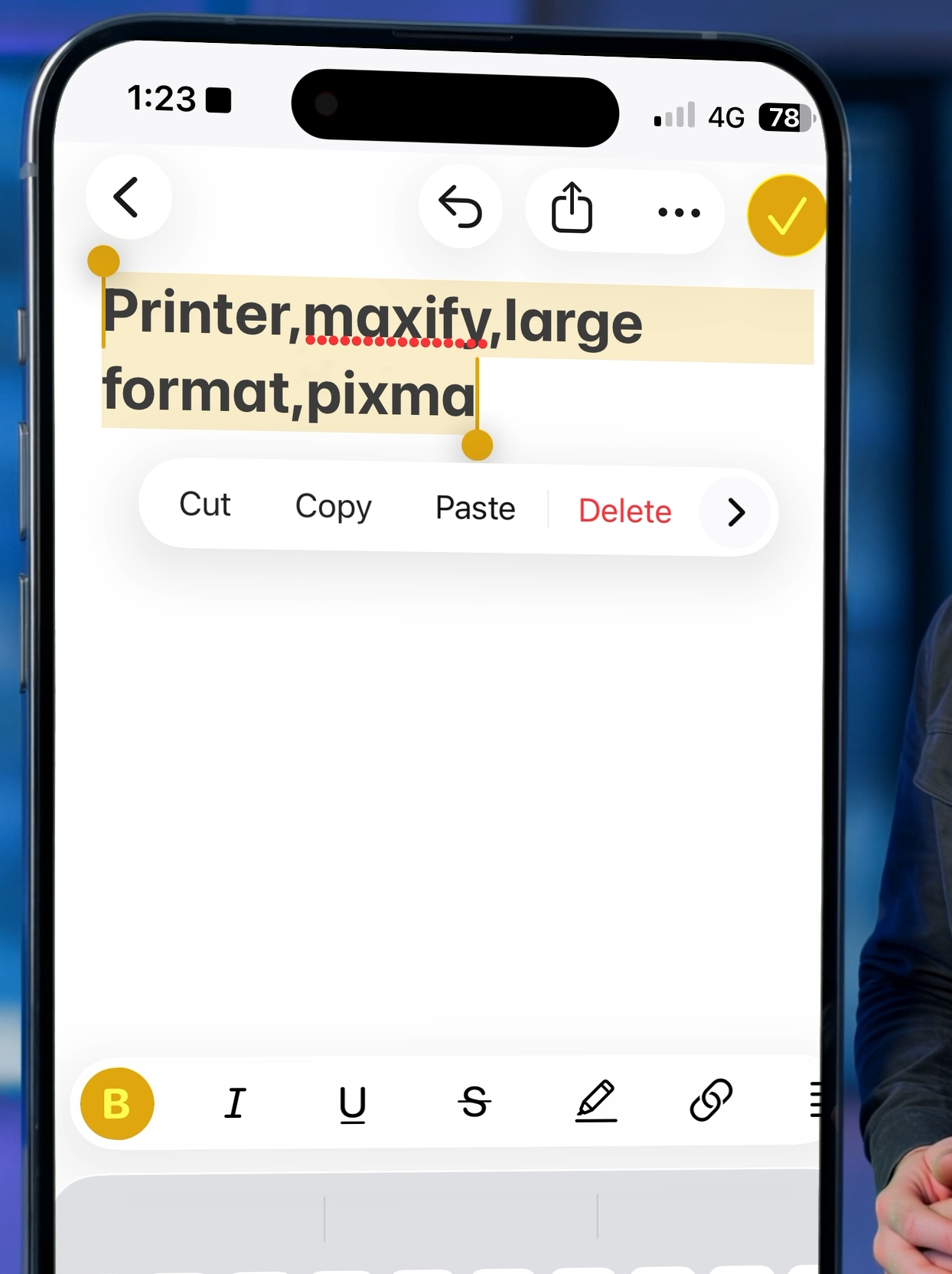
This allows you to paste the same filters into each of your searches, saving time and effort.
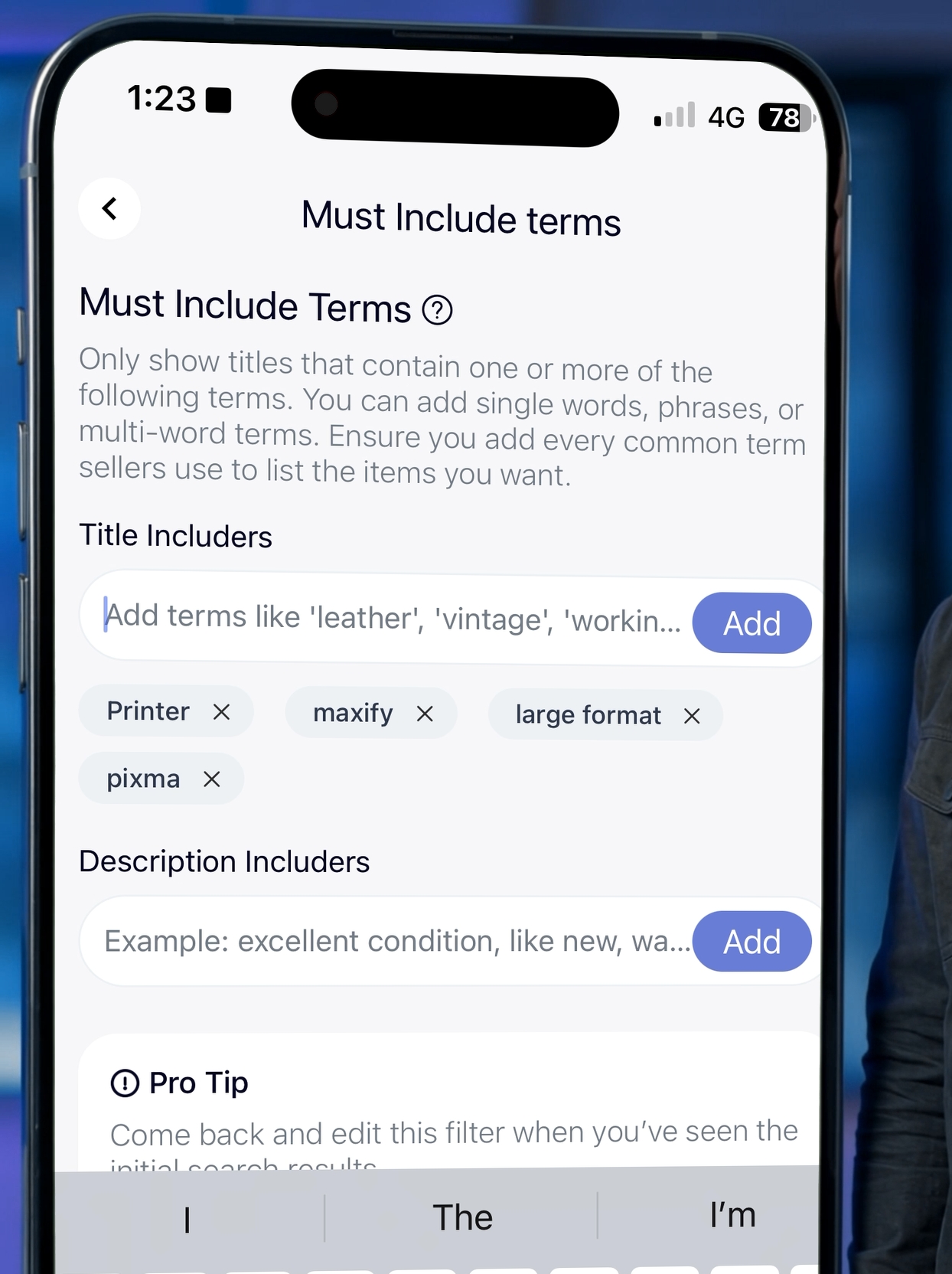
Finally, repeat this process for any other search terms you planned.
Key Takeaways
- Keyword filters can only be added after a search has been created
- Access filters by tapping the pencil icon, then "Add keyword filters"
- Positive filters must be in the title for a listing to appear
- Negative filters block listings when specific words appear
- Positive filters can match as part of a larger word (heat matches heater)
- Multi-word positive filters require all words present (any order)
- Negative filters must match exactly in the same order
- Negative filters allow simple English plural forms
- Use specific includers (e.g., "MCM table") to narrow results
- Use model names alongside generic terms for better filtering
- Use includers instead of excluders when dealing with many variations
- Description filtering is available but should be used with care
- Save filters in notes app for easy reuse across searches
Need Help?
You can book a call with an expert or message a specialist via chat for additional help.