
How to Create a Car Search
Getting Started
To create a car search, tap Home, then tap Create Search, select Vehicle, then choose Cars or Trucks and Motorbikes.
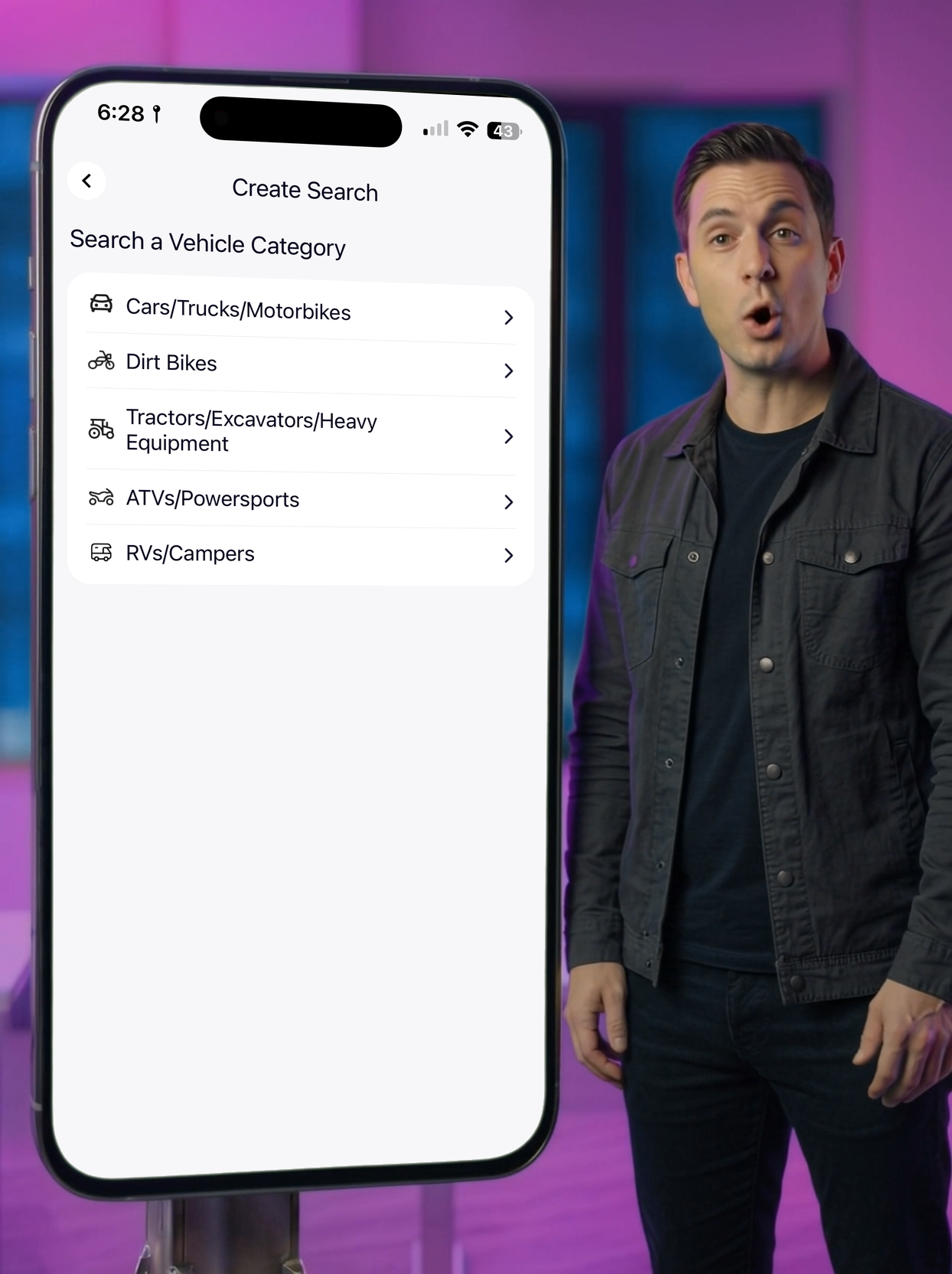
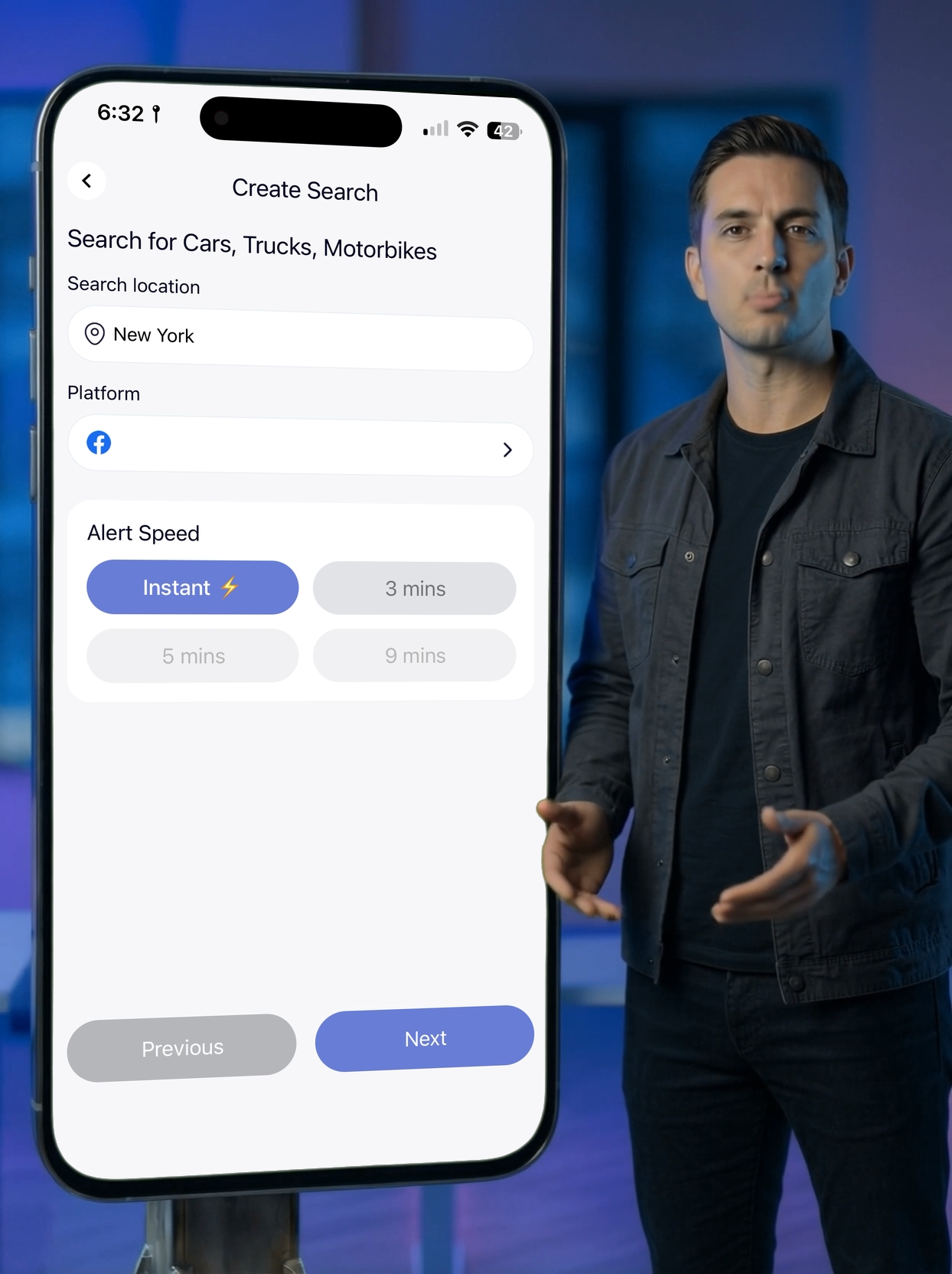
1 Choose Your Search Settings
Next, choose your search location, platform, and alert speed.
We recommend creating searches across multiple platforms to expand your reach and surface more opportunities. After creating a search on one platform, you can repeat the process on another.
2 Select Vehicle Type
If you want to search all cars and exclude ATVs and bikes, go to Make and select Any Car.
Set your minimum and maximum year range.
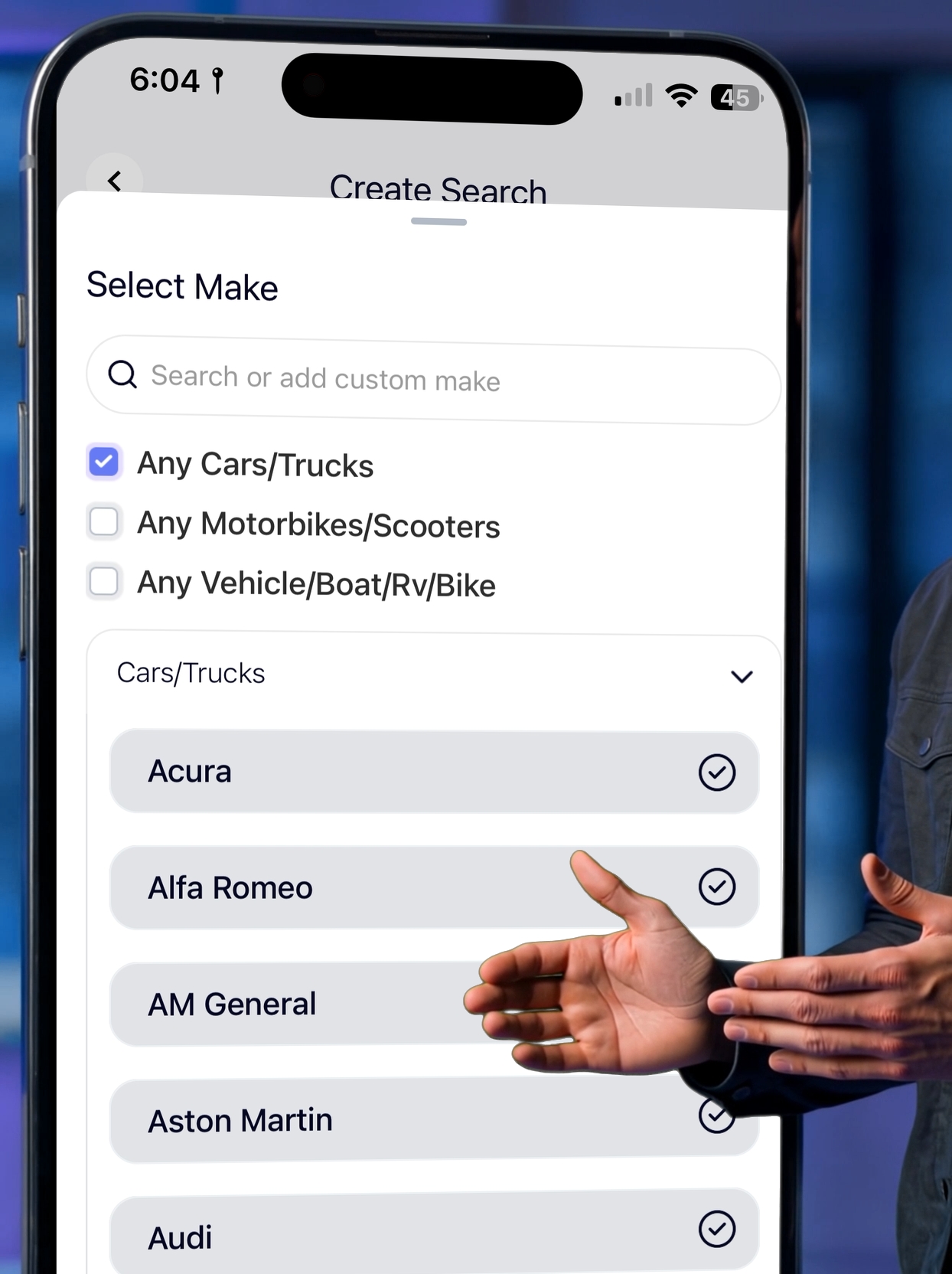
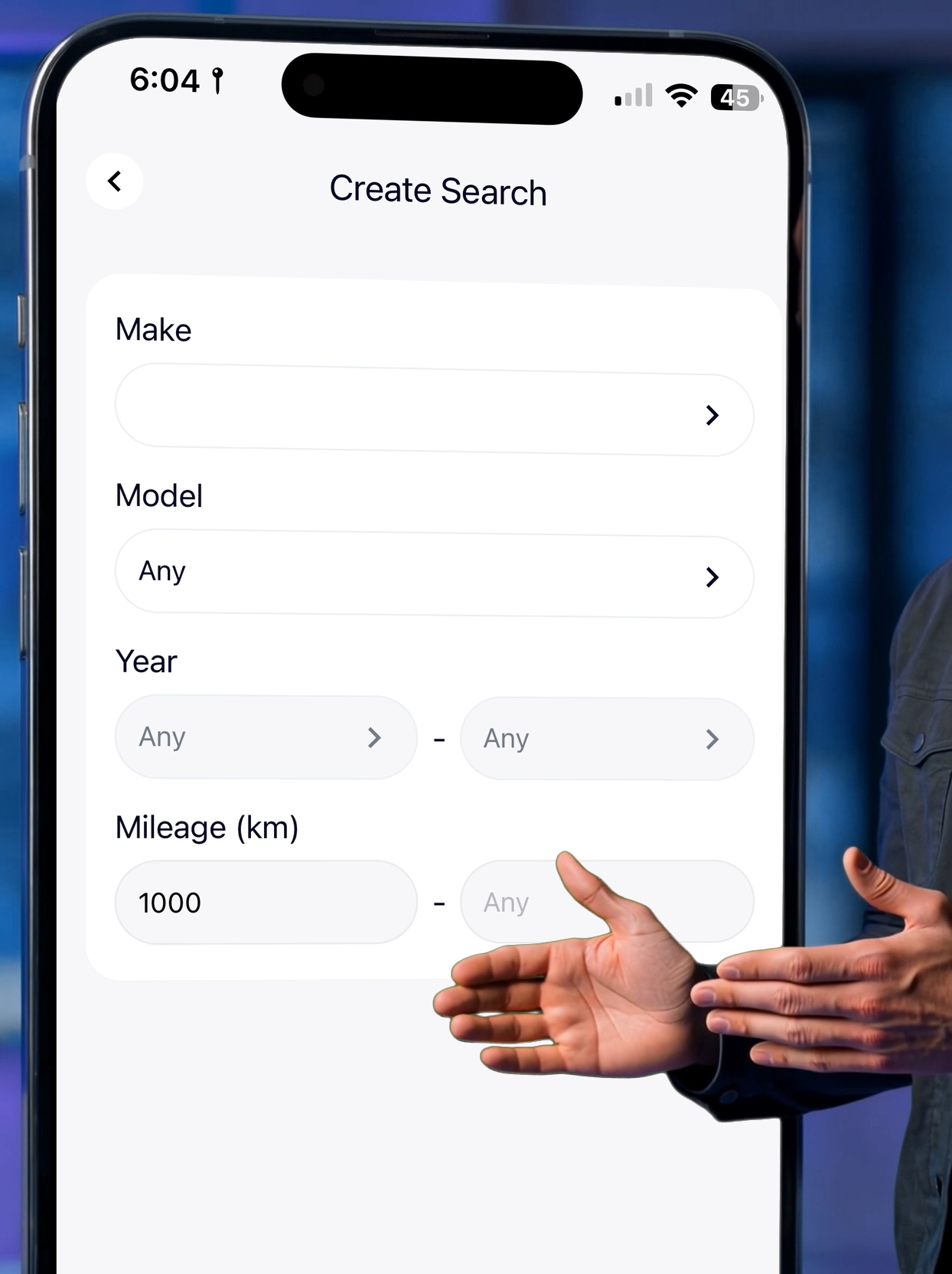
When finished, tap Continue.
3 Set Price Range
Set your minimum price. We recommend at least $350 to block tire and parts listings.
Set your maximum price to reduce excess notifications.
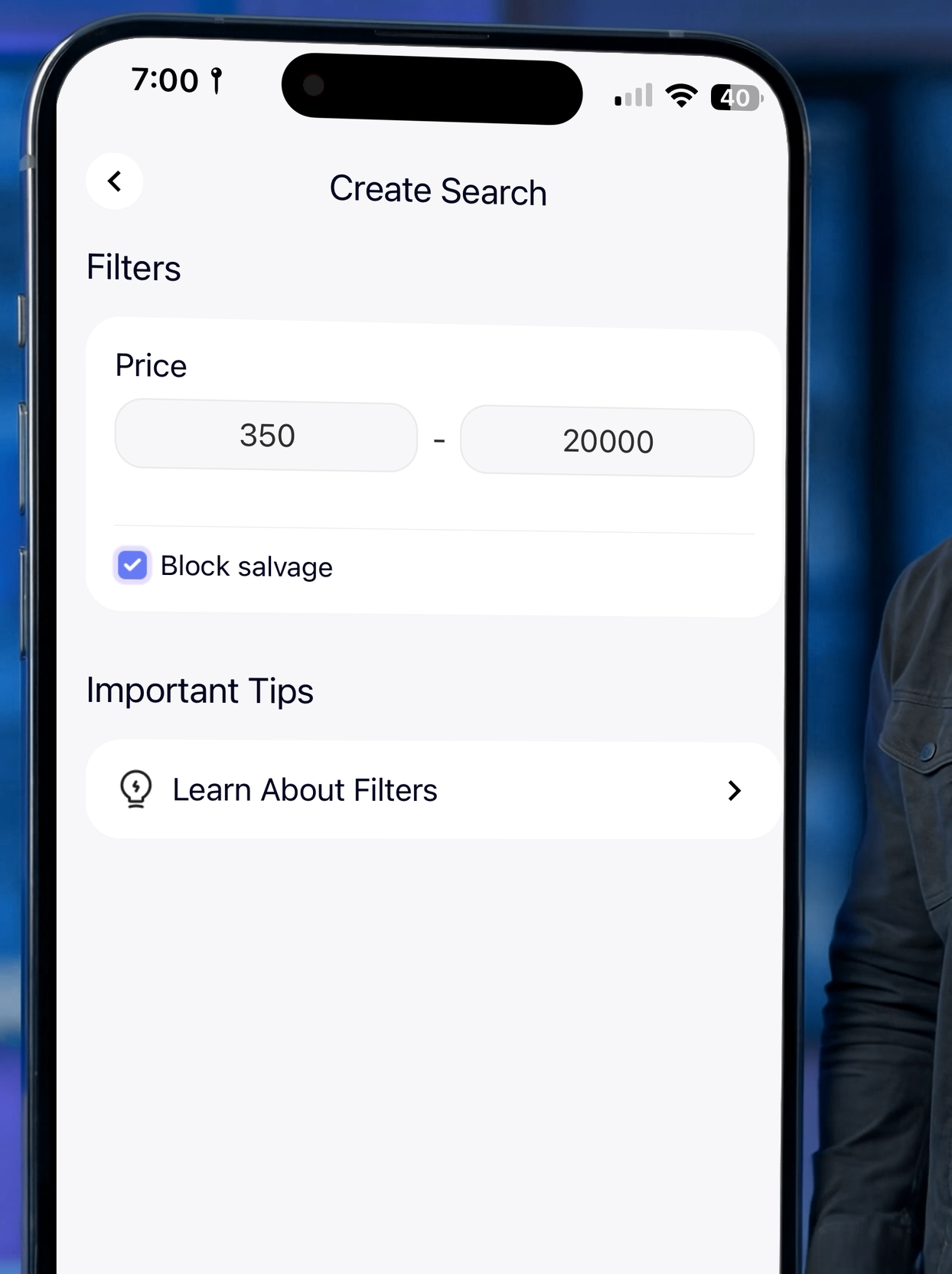
4 Configure Filters
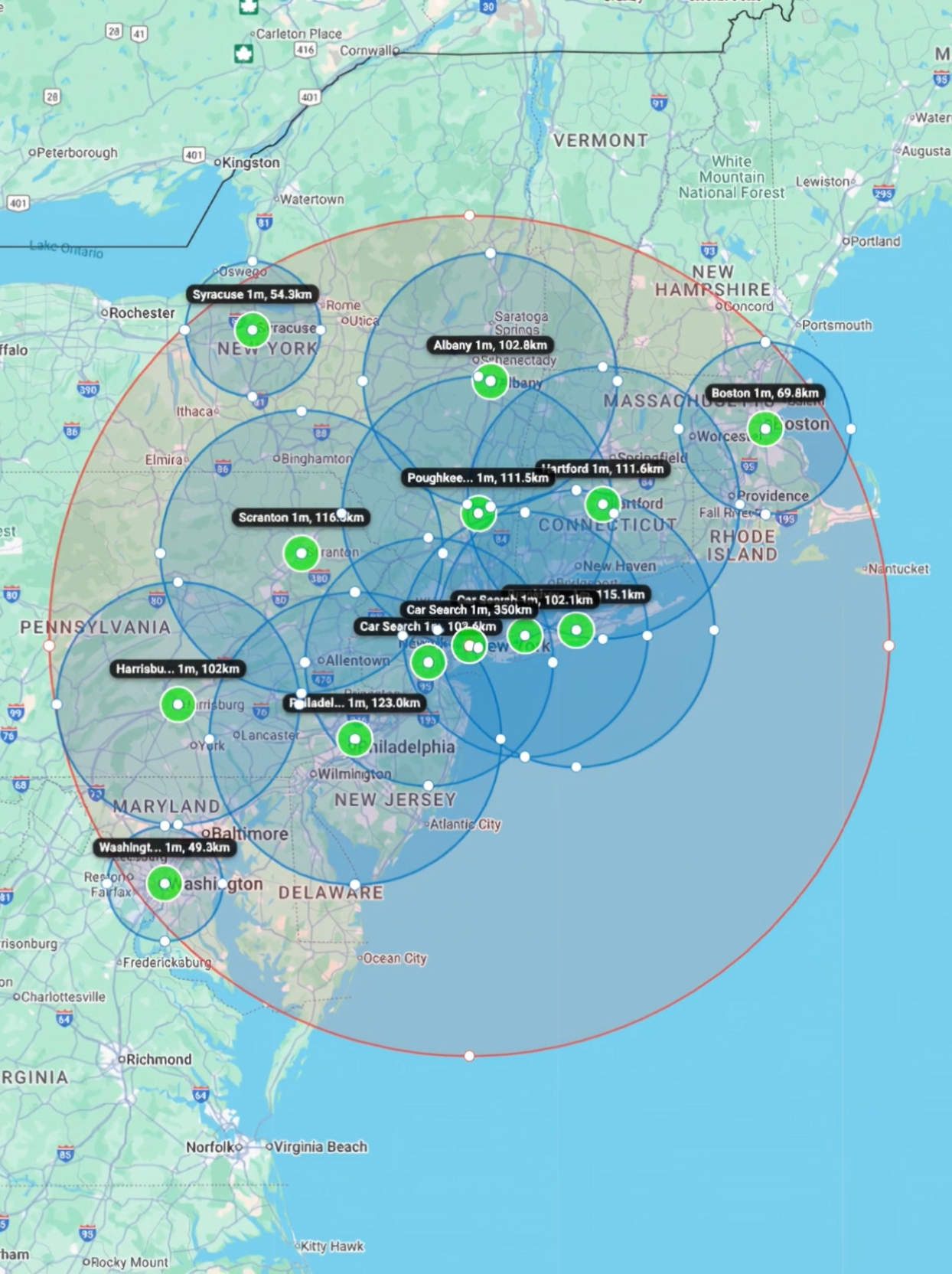
Next, set your maximum search radius.
For Facebook searches we recommend adding searches in all the main cities you want to search from.

5 Add Keyword Filters
You can add words to the excluders that indicate damage such as:
and similar terms.
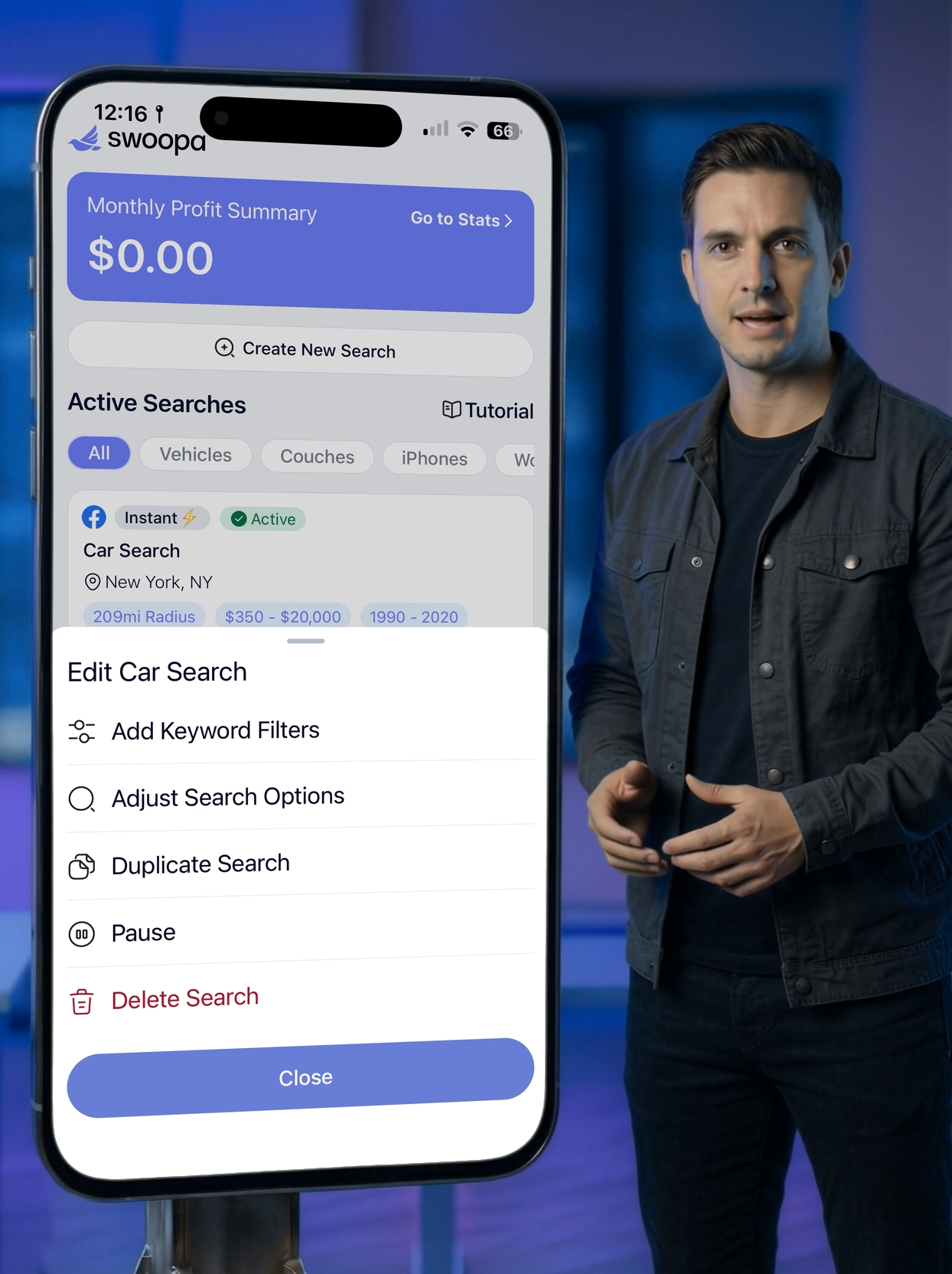
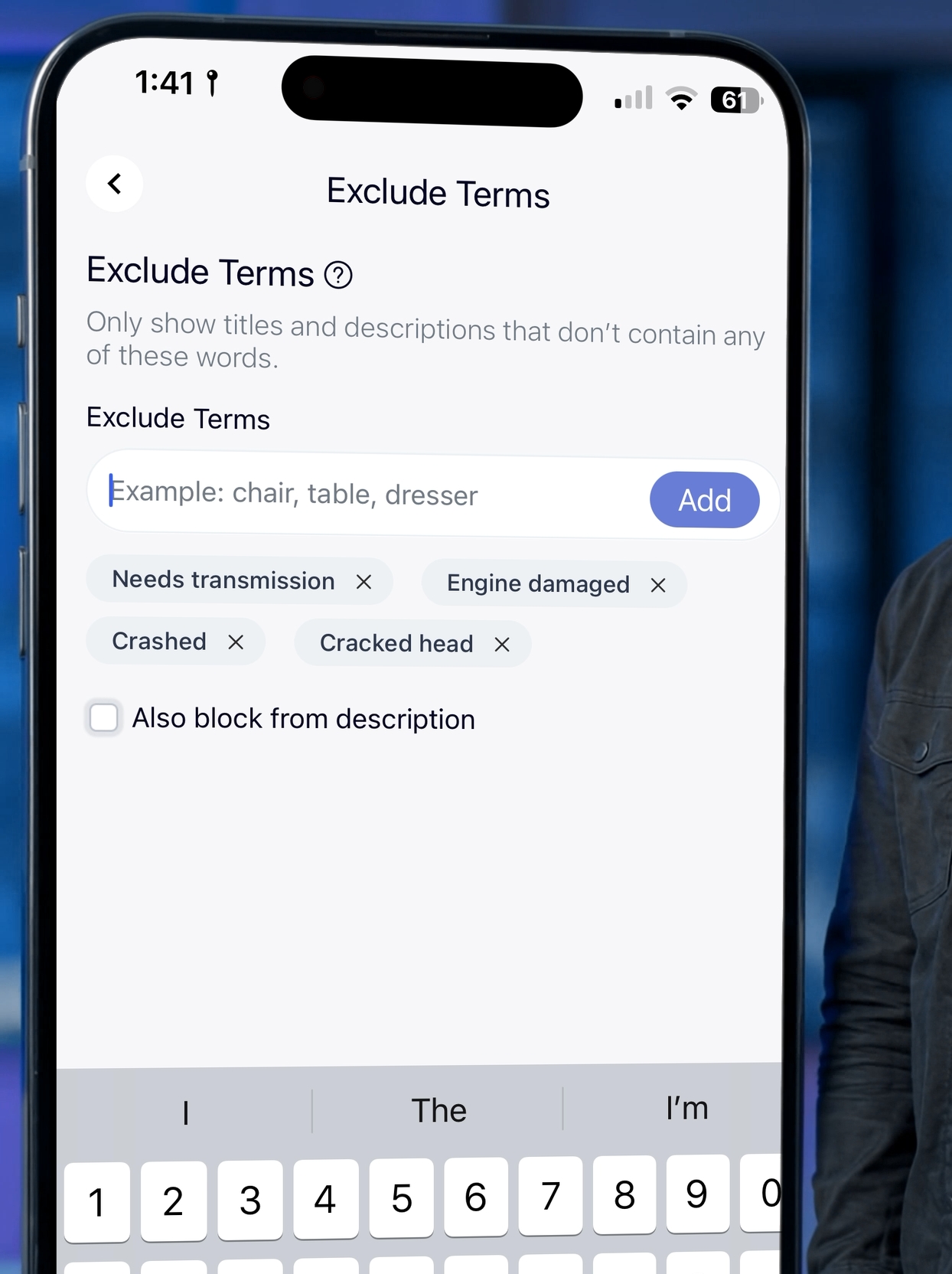
Then check the option to also block from description and tap Next, and then tap Save.
6 AI Feed Filter (Optional)
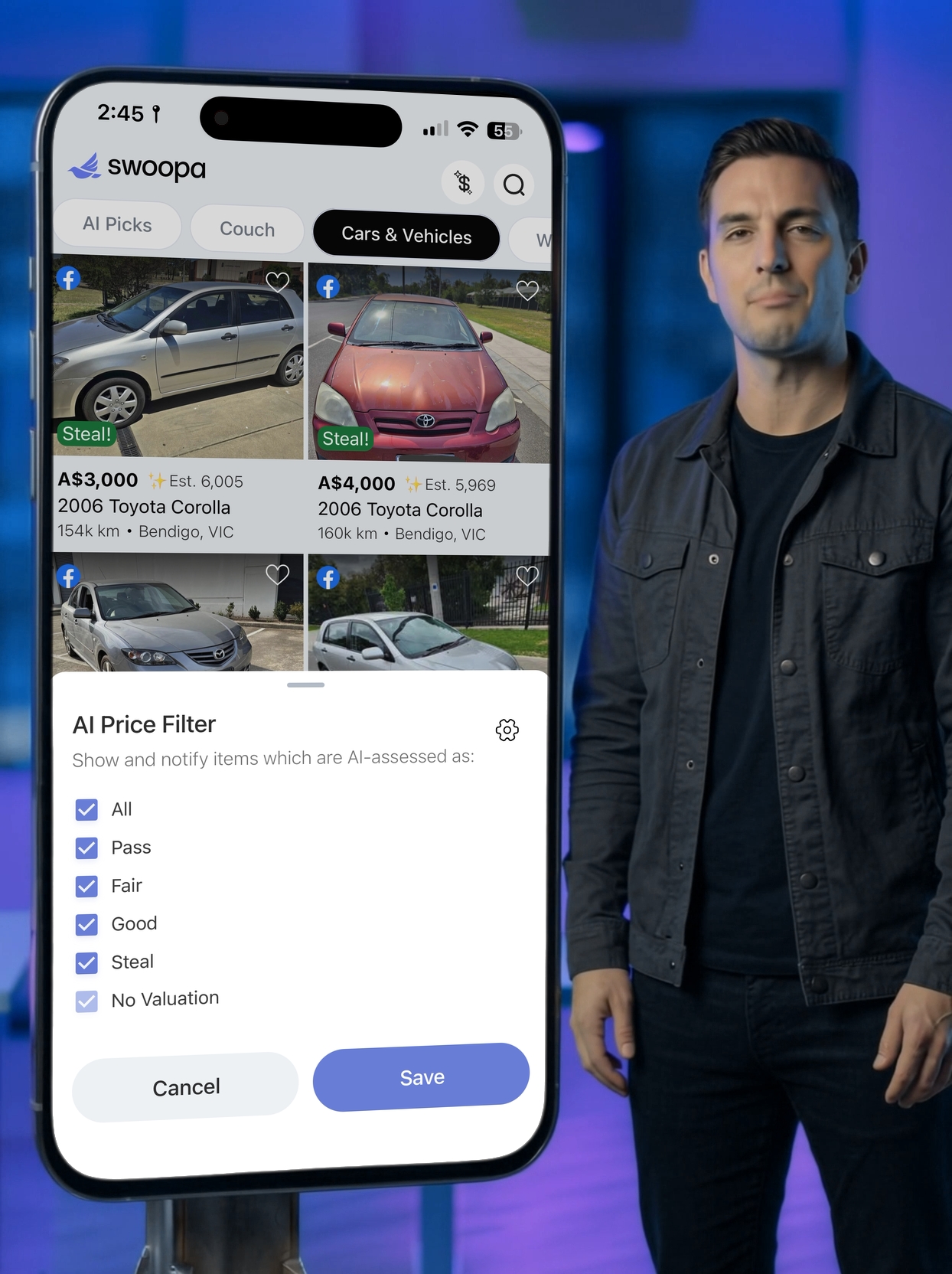
If you want to try the AI feed filter, you can configure it from the feed page using the dollar icon in the top right corner.
Need Help?
You can book a call with an expert or message a specialist via chat for additional help.